For machinists, fabricators and small shops · Windows
Drop in the part.
Get the plan to make it.
RouteCard reads a STEP or DXF file and works out how to make the part on the machines you have: setup sheets for the manual lathe and mill, checked G-code for a CNC, cut programs for a laser or plasma table, or a sliced 3D print. Then it prices the job for your customer.
Beta open to a few shops now. On sale in 2027. No internet needed to use it.
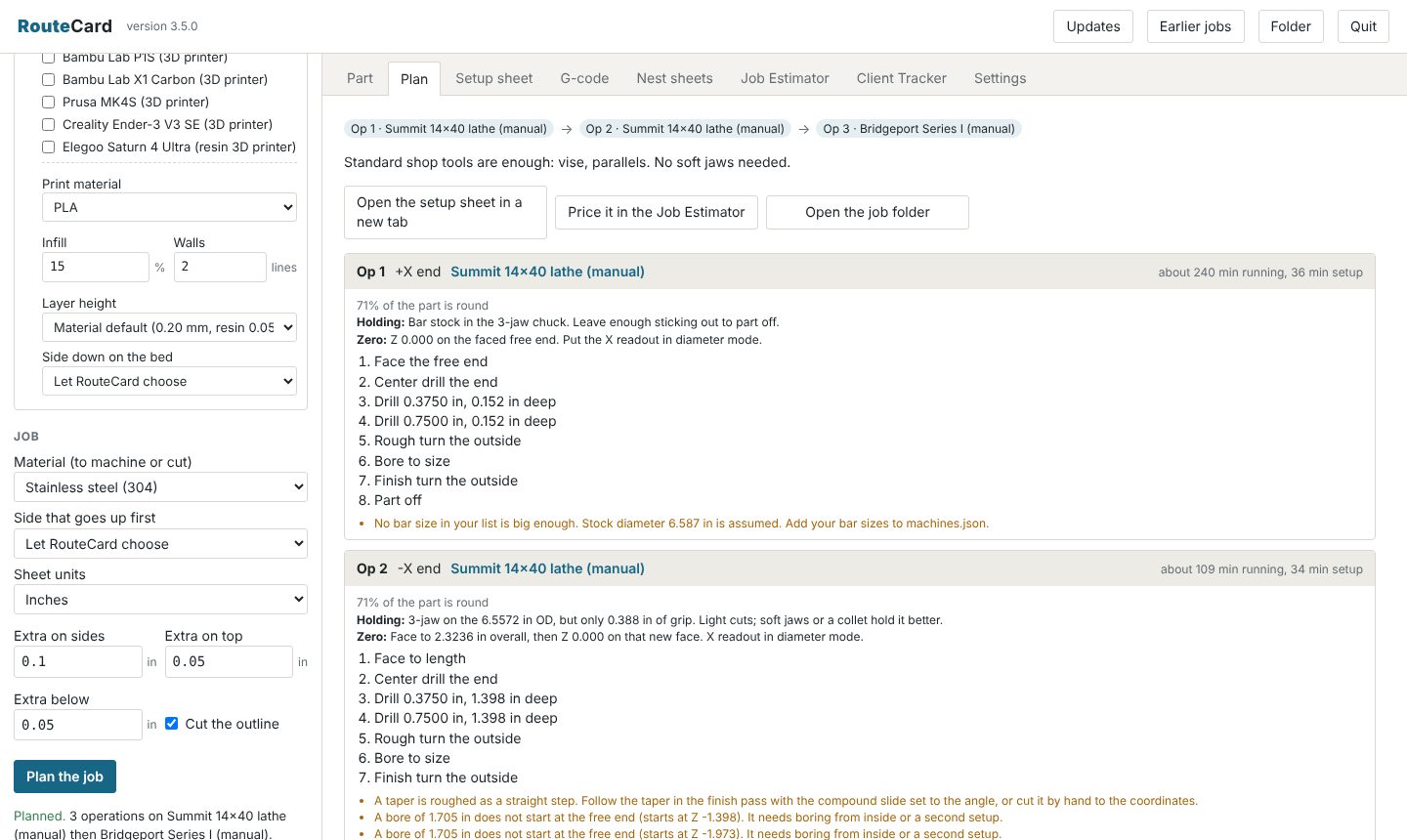
Manual first. CNC when you have it. Cut or print when that's cheaper.
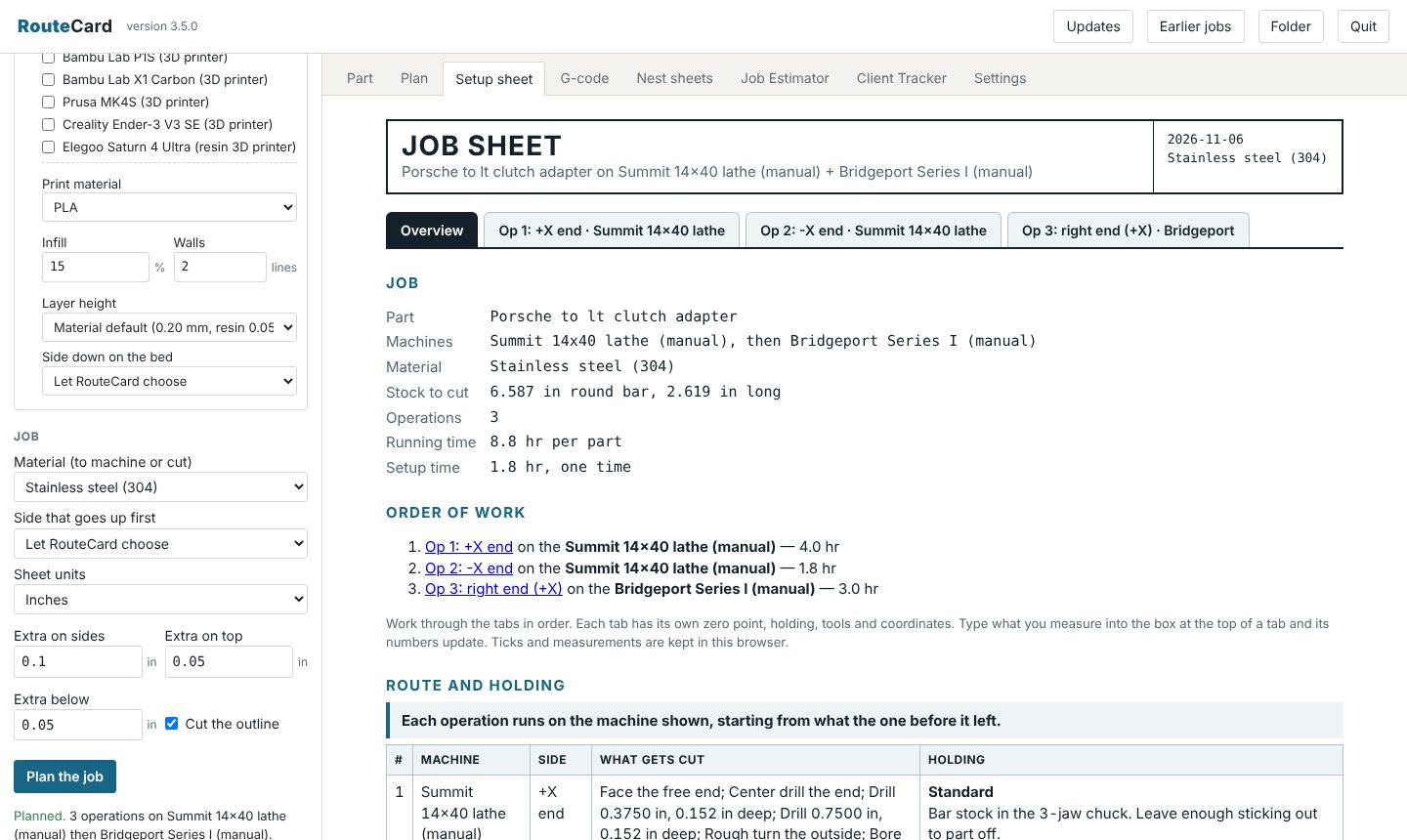
Setup sheets you can work from
Holding, where to set zero, every step with the tool, speed, feed and depth, and DRO coordinates for every hole.
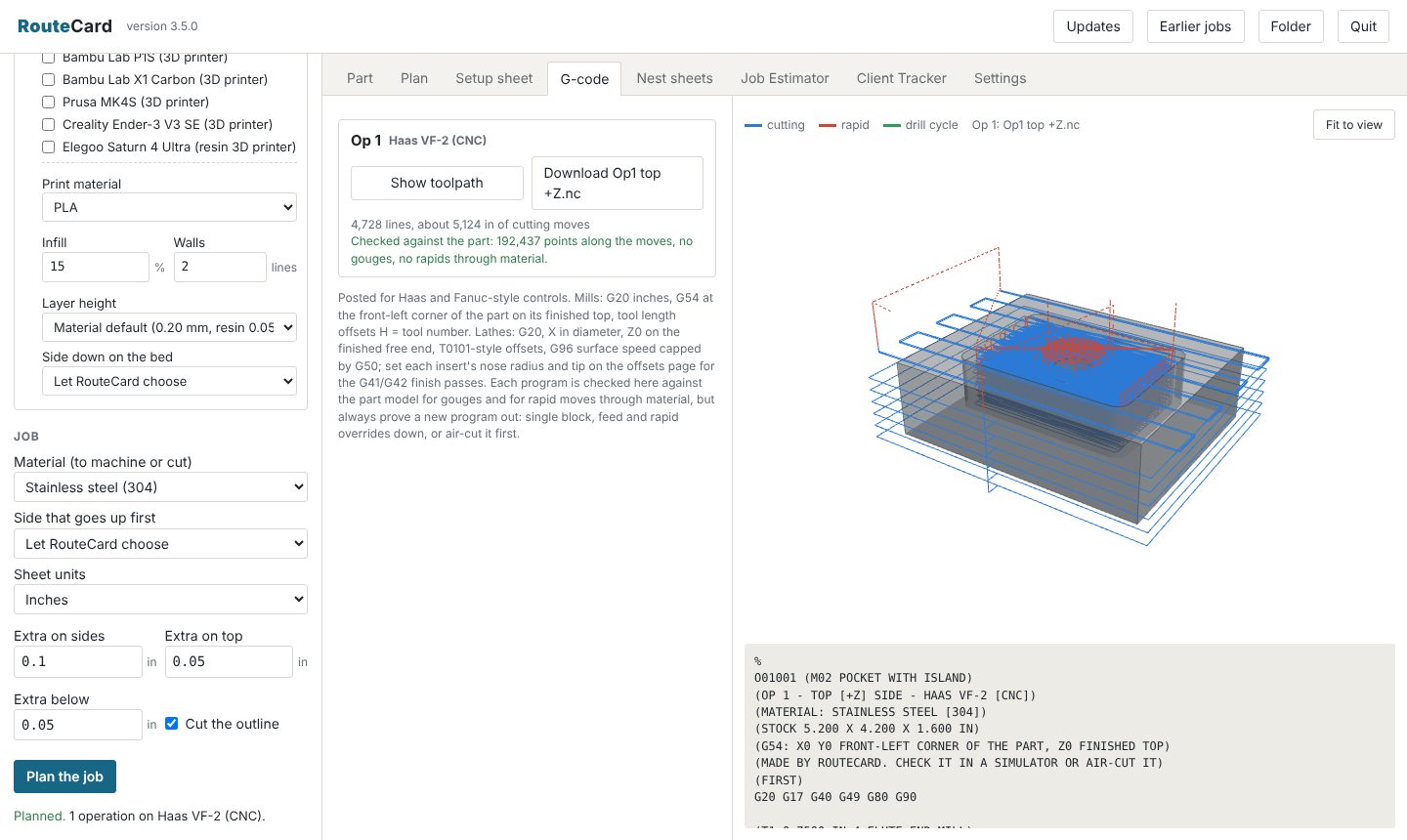
G-code, checked before you see it
Mill and lathe programs posted for Haas and Fanuc-style controls, then replayed against the part for gouges and rapids into material.
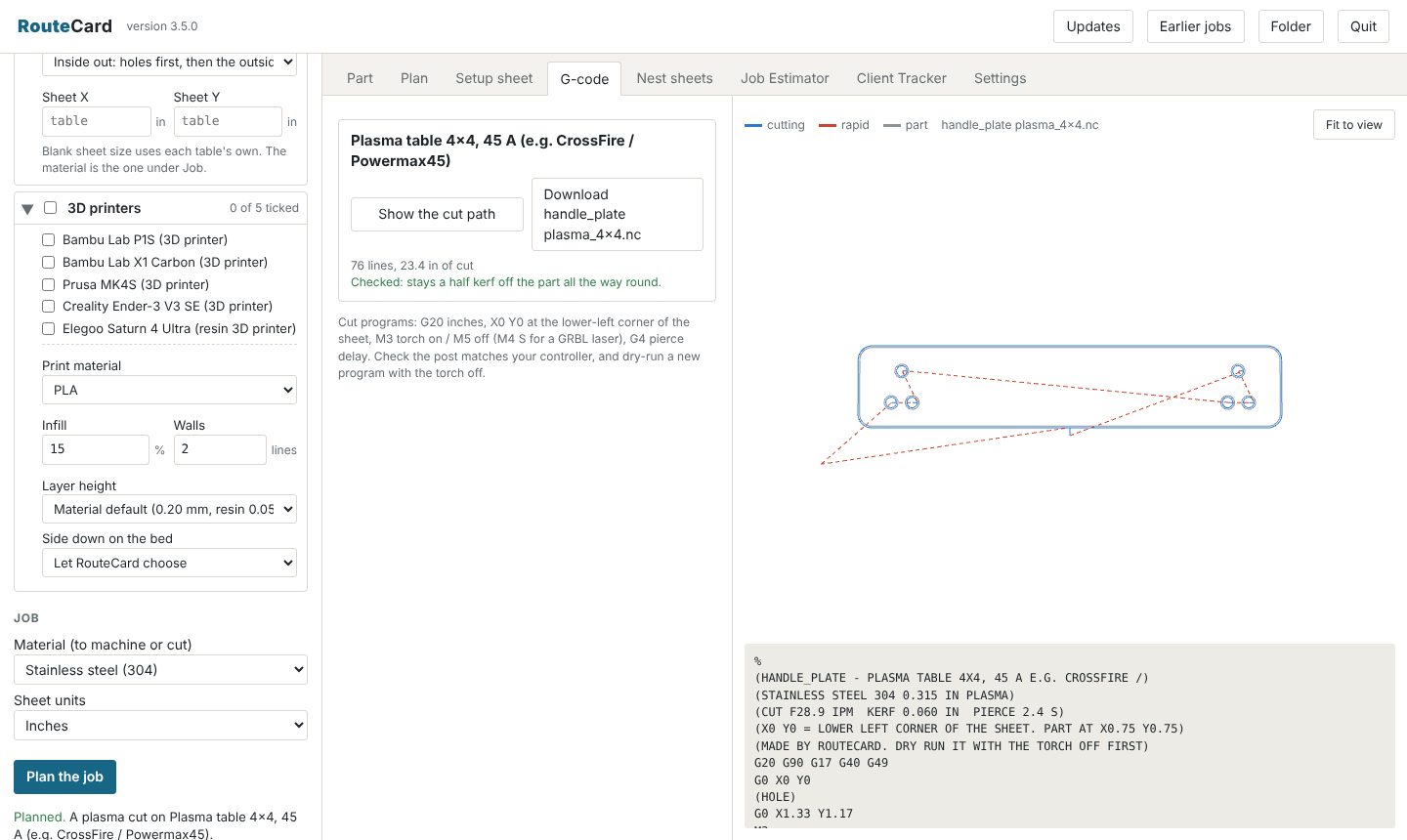
Cut programs, and whole sheets nested
Kerf allowed for, holes first or outside first, lead-ins off the part. Drop in a whole kit of parts and it nests them on your sheet for the least waste.
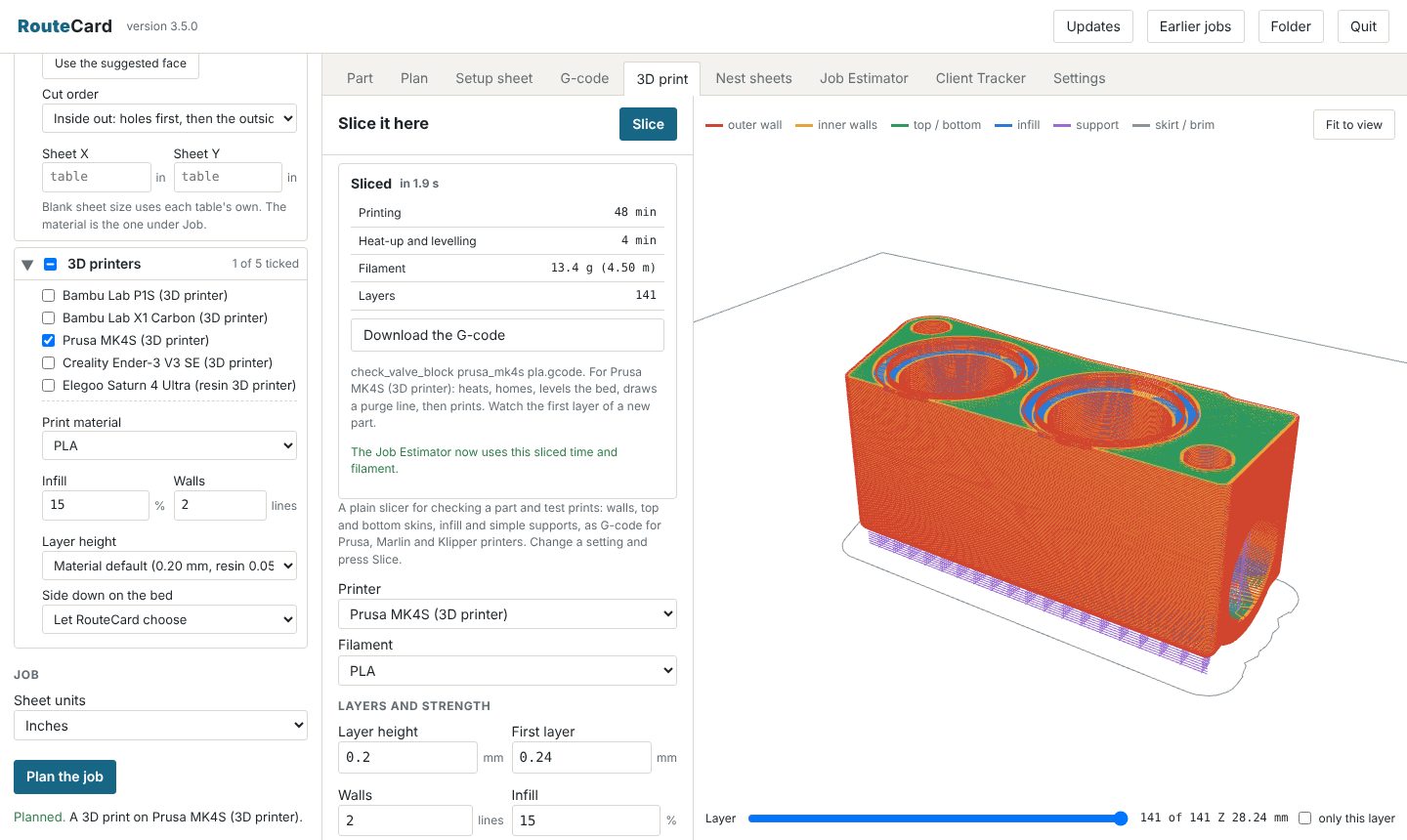
Sliced right in the app
Best side down, supports, print time and filament, a layer preview, and G-code for Prusa, Marlin and Klipper printers.
A DRO that knows the job
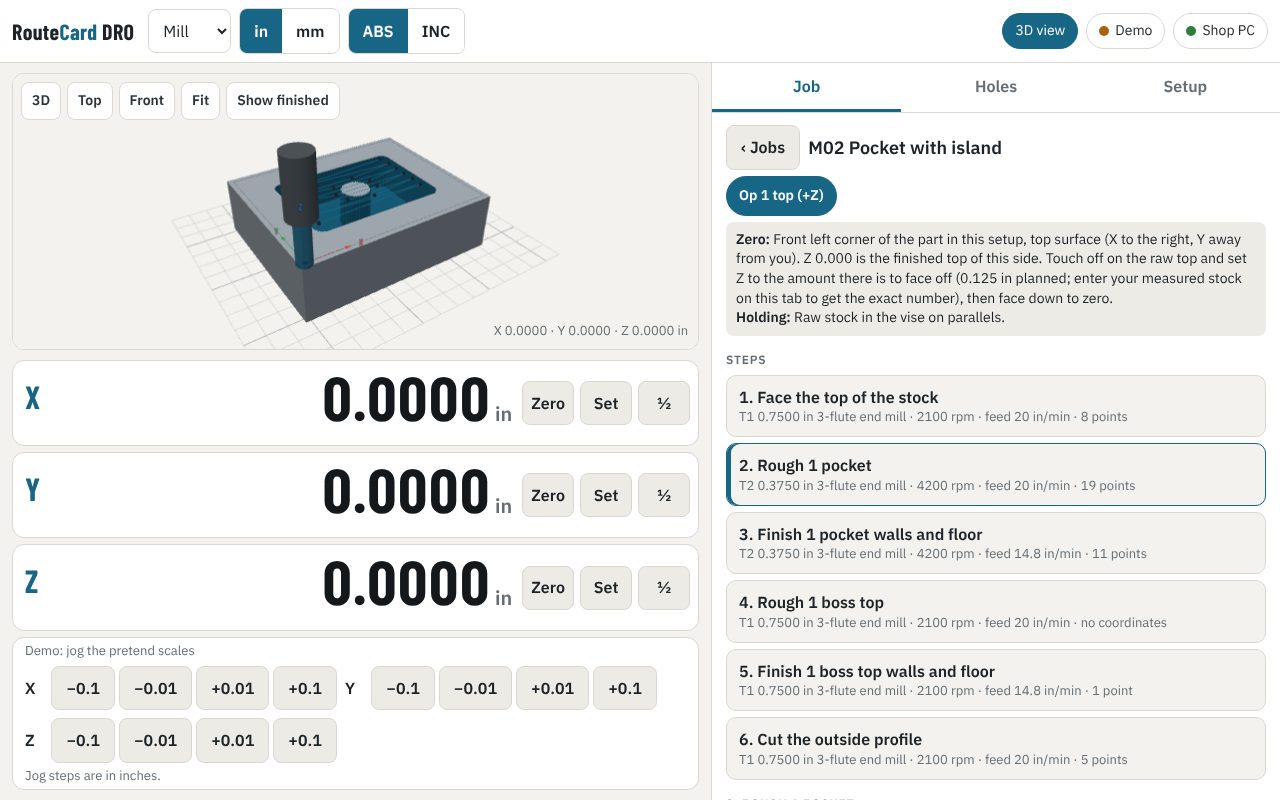
RouteCard DRO runs on an Android tablet beside your mill or lathe. It reads your glass scales through a Bluetooth DRO adapter and counts down to every hole, path point and lathe pass in the plan, one step at a time.
- Distance to go for every target, with the next point drawn on the part
- The stock as it should look after the step you are on, with what that step cuts in colour
- Bolt circles and lines of holes worked out at the machine
- Pairs with RouteCard on the shop PC over Wi-Fi. Nothing goes over the internet
See what each way costs before you quote
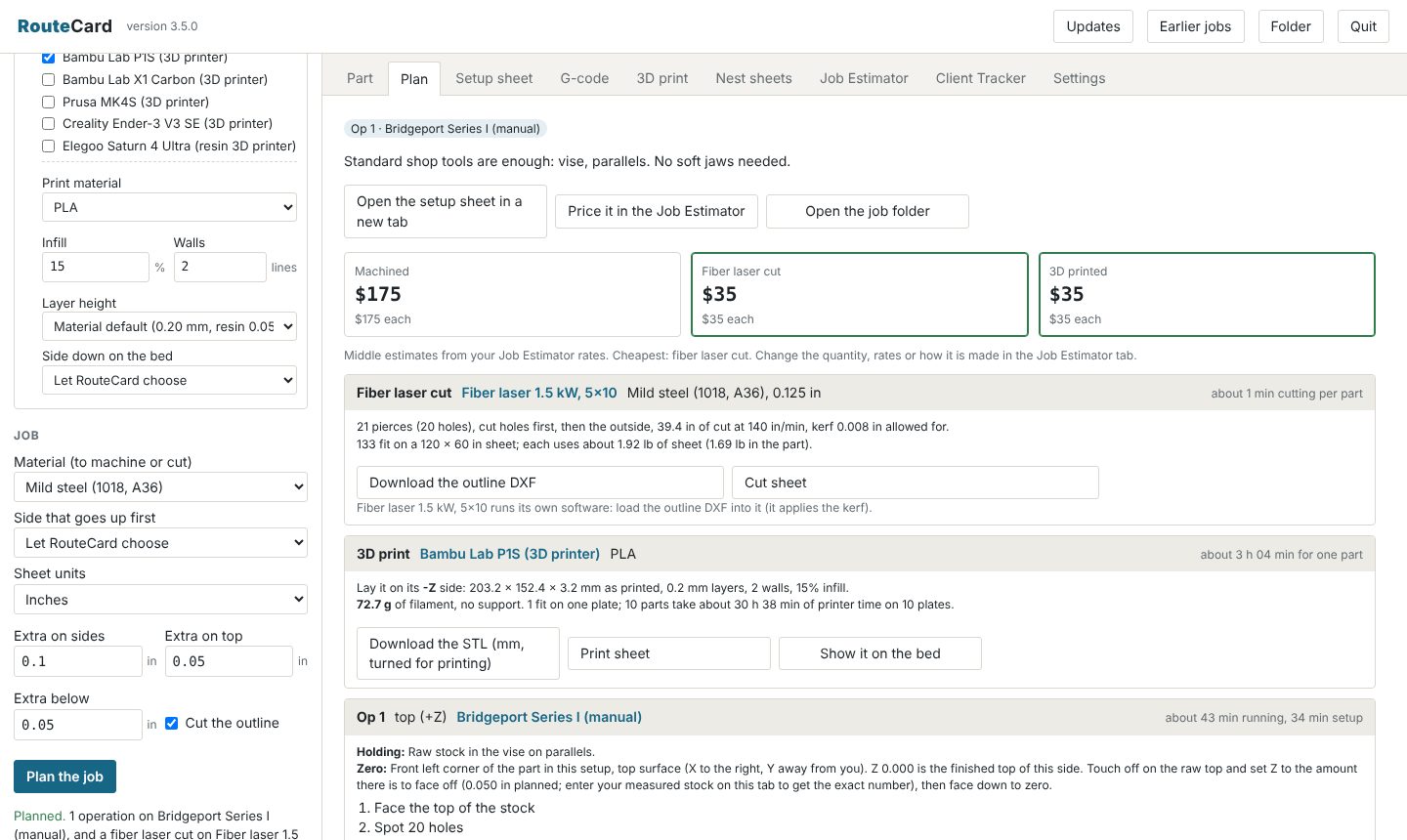
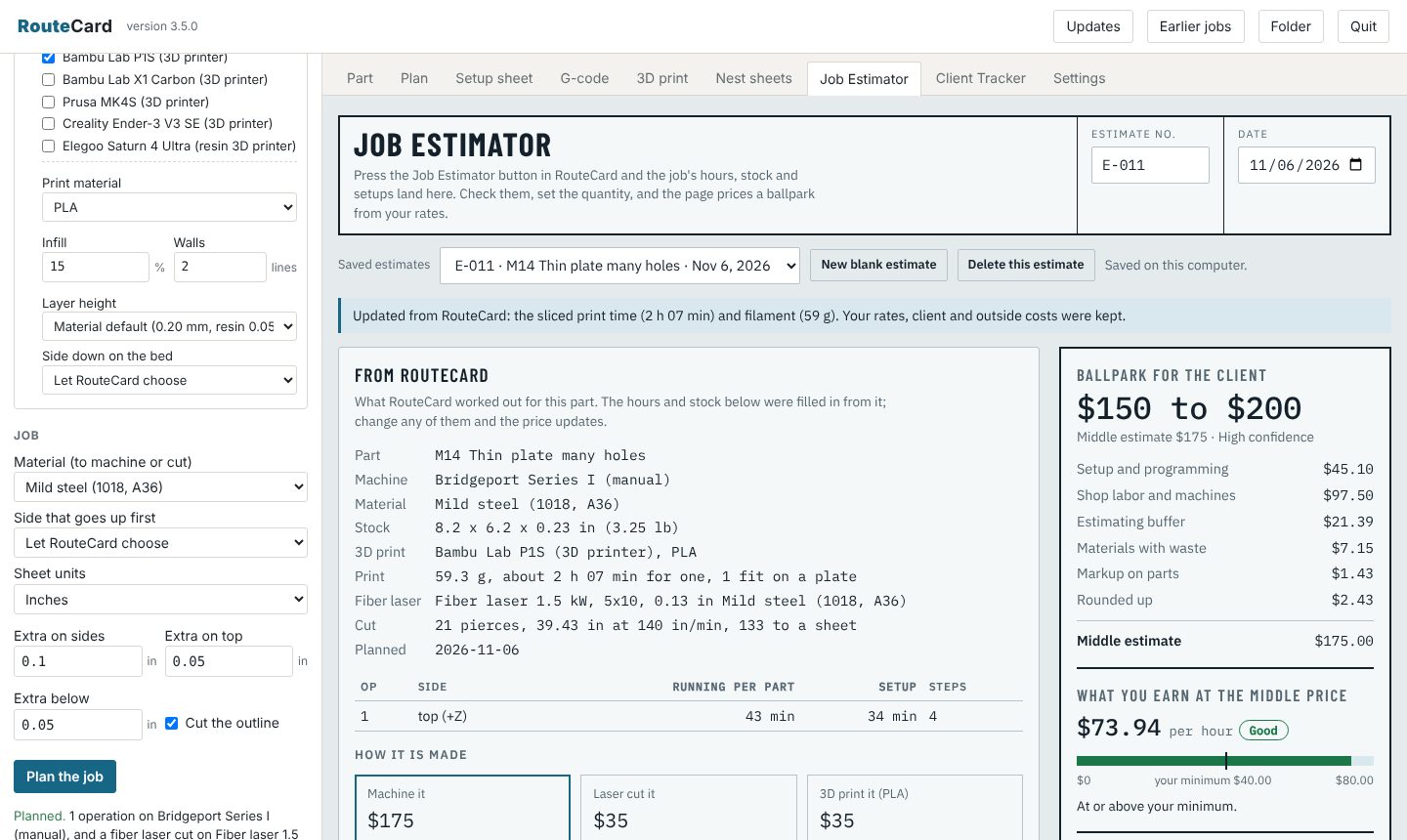
Plan a part on a mill, a cutting table and a printer at once, and the Job Estimator prices all three with your own shop rates. Pick one and it writes the hours, material and a message for the client.
- Your rates per hour for each machine, labor, CAD and markup
- Material by weight for bar and plate, by the gram for filament
- A ballpark range, what you earn per hour, and a copy-ready client message
- Send it to the Client Tracker as a quote
Set it up for the machines you actually have
It comes with a Bridgeport-size manual mill, a 14×40 lathe, Haas VF mills, plasma and laser tables, and five common 3D printers. Tick the ones you have, add your own, and change any size, speed or time. Every field shows its unit.
- Machines grouped by kind, each with a summary you can open and edit
- Your tool list: end mills, face mills, drills and spot drills
- Materials with their cutting data, filaments with their temperatures
- Settings move to another computer by export and import
Beta open now. On sale in 2027
A few shops get the whole program free during the beta, to use on real jobs and tell us what to fix. Buy it once when it goes on sale: no subscription.
- Runs on
- Windows 10 or 11, 64-bit
- Reads
- STEP (.step, .stp) and DXF
- Writes
- Setup sheets, G-code (.nc), STL, DXF, print G-code
- Internet
- Not needed to use it
- Your files
- Stay on your computer
Everything it does, part by part
What you get from one STEP or DXF file, from reading the part to sending a quote.
Any CAD program, any part
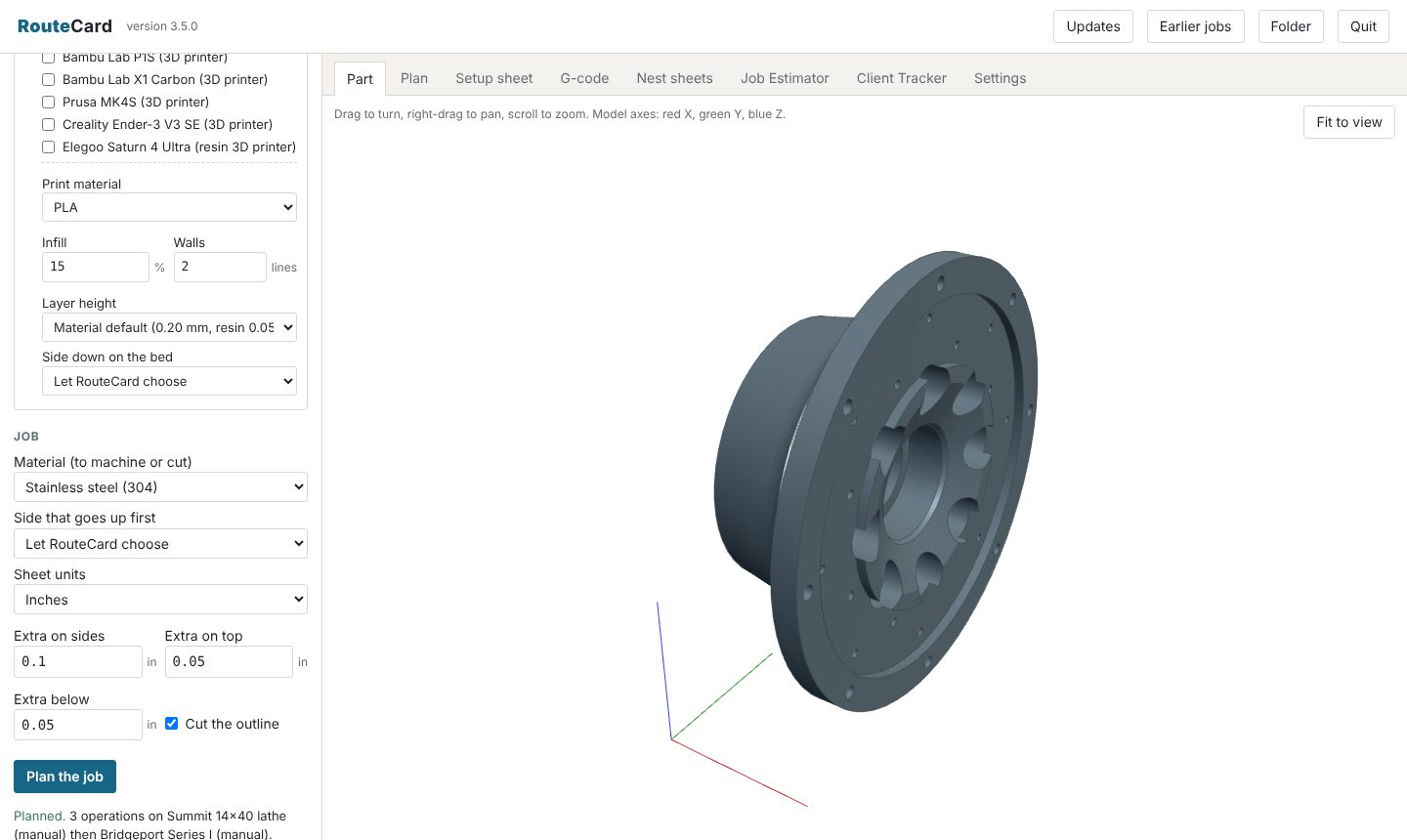
Export a STEP from Fusion, SolidWorks, Onshape, Inventor or FreeCAD and drop it in. It finds the faces, holes, pockets, bosses, grooves and round features, and how big the stock has to be.
- STEP files with one or many bodies; pick the body to plan
- DXF files for laser and plasma: lines, arcs, circles, polylines, splines and blocks
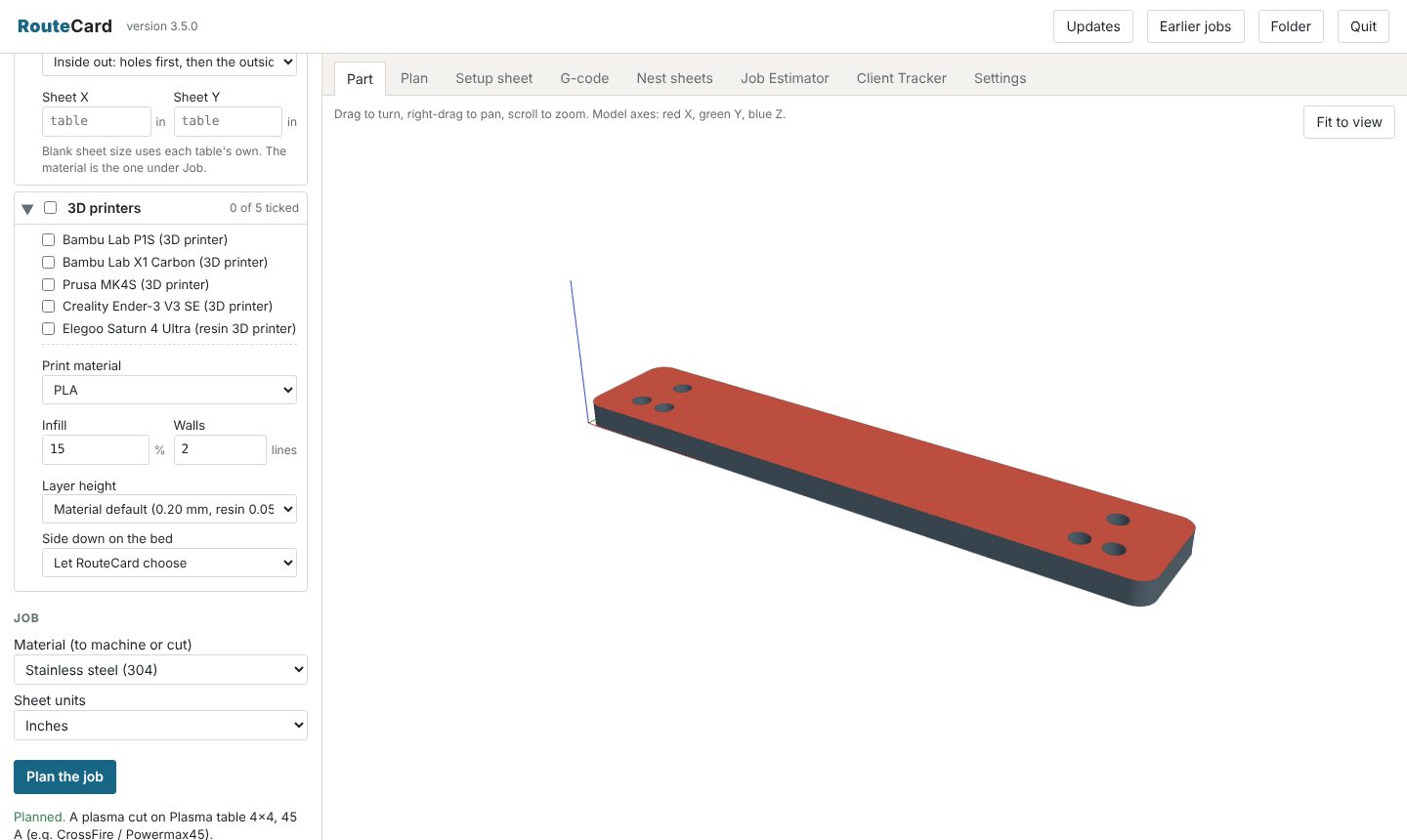
- Turn, pan and zoom the part; click a face to pick it
The order to make it in
Tick the machines you have and it routes the part: round parts on the lathe first, then each side on the mill. When a manual mill and a CNC can both do a setup, you choose which it prefers.
- Every setup: how to hold the part, where to set zero, and each step
- Soft jaws or a fixture plate designed for you when standard holding will not do
- Parts bigger than the machine's travel are split into zones
- Running and setup time for every operation
When the vise will not hold it, RouteCard designs what will
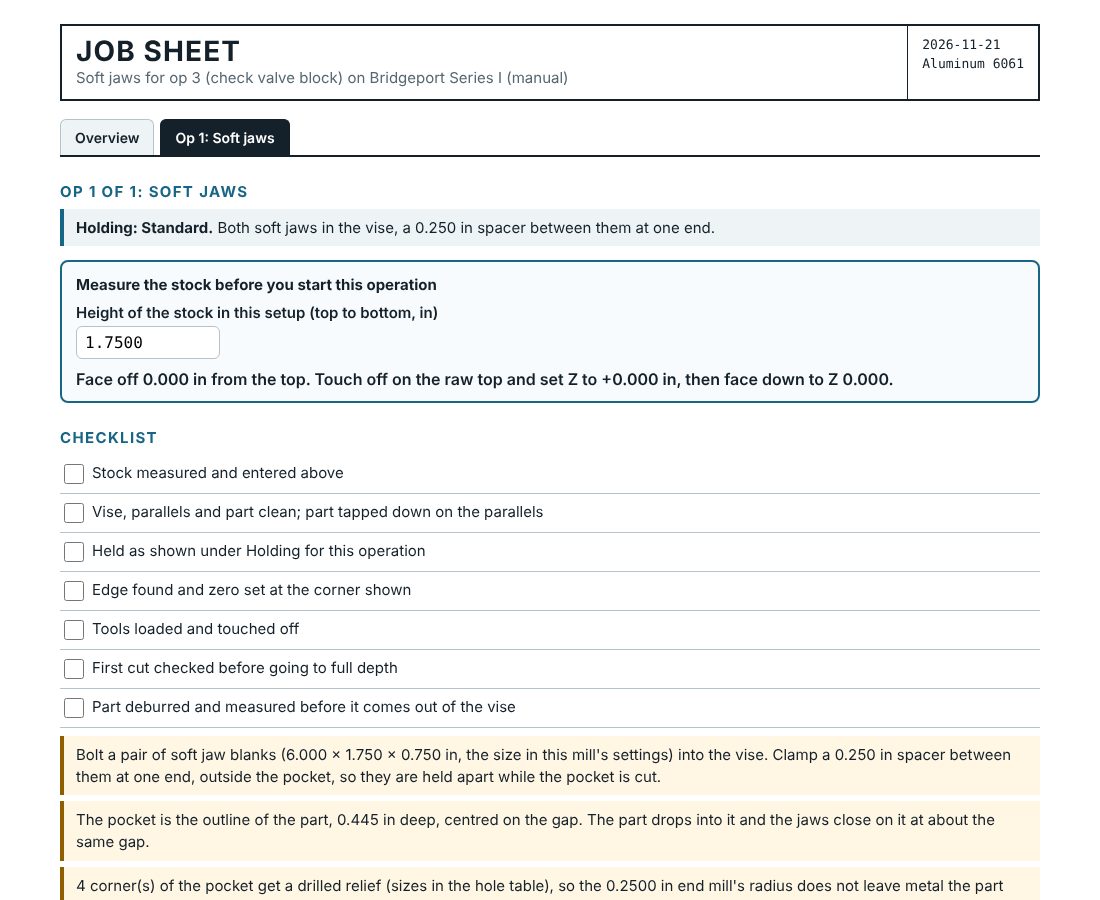
A part that needs special holding gets its fixture planned with it: soft jaws for your vise with a pocket the shape of the part, a fixture plate the part screws to, or lathe soft jaws bored to the part. Each comes with its own sheet, a DXF, G-code on a CNC, DRO points, and its time and material in the Job Estimator.
- Your vise jaw size is a setting for each mill (a 6 in Kurt-style jaw to start)
- Pocketed jaws get drilled corner reliefs, so a small cutter is not needed
- Fixture plates use the part's own through holes or tapped holes
- Charge for the fixture once, spread it over a run, or leave it out of the quote
Setup sheets for the lathe and the mill
A printable job sheet for each setup, written to be followed at the machine.
- Tools from your own tool list, with speeds, feeds and depths for the material
- Hole tables and bolt circles with DRO coordinates
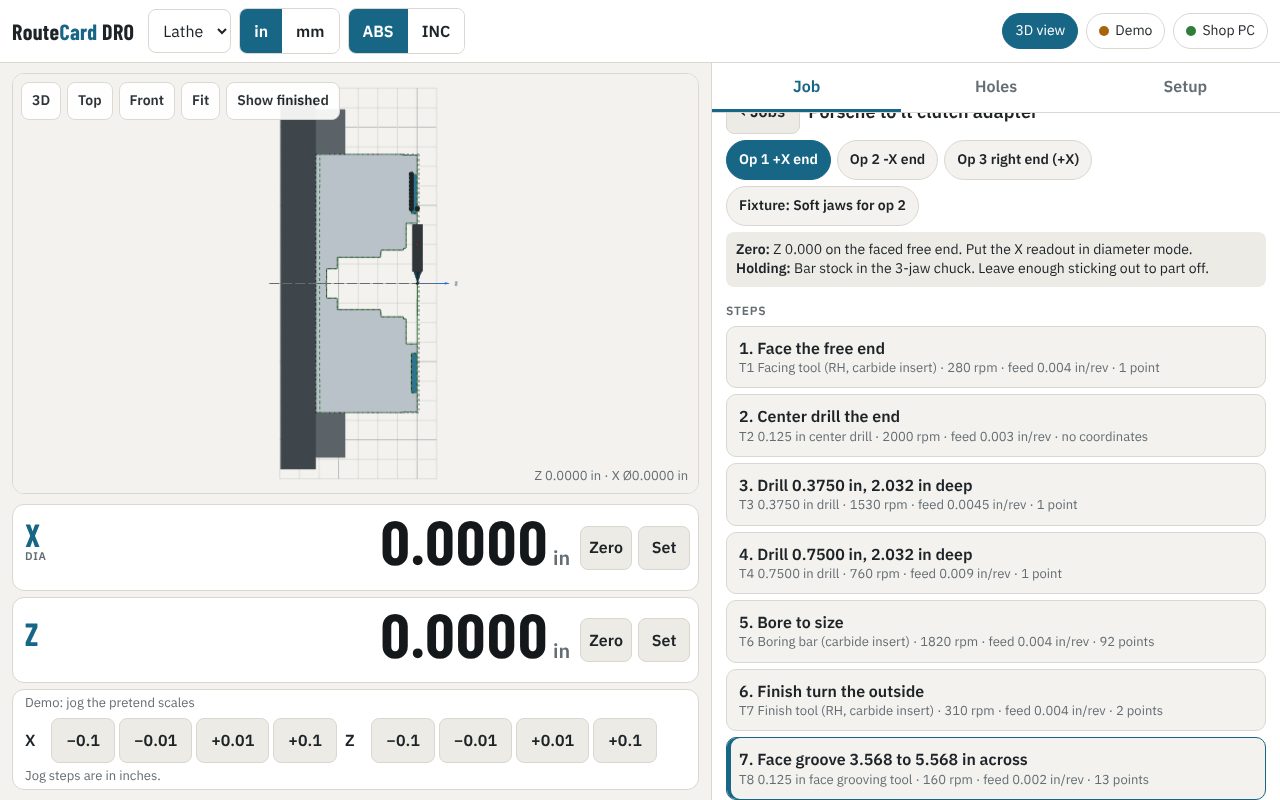
- Turning passes with X and Z for the lathe, with face grooves and rounded corners followed point by point
- A step-by-step view of the stock after each cut
- Inches or millimetres
Your plan on the tablet at the machine
An Android app for the mill and the lathe. Connect a Bluetooth DRO adapter to your scales, pair the tablet with RouteCard on the shop PC, and pick the job. The readout counts down to each target in the plan; lathe steps are drawn as a section through the part with the chuck, so you can see what the next cut takes off.
- Zero, set and half on every axis; inch or mm; absolute or incremental; diameter mode on the lathe
- Counts per inch, reverse and calibration for each scale
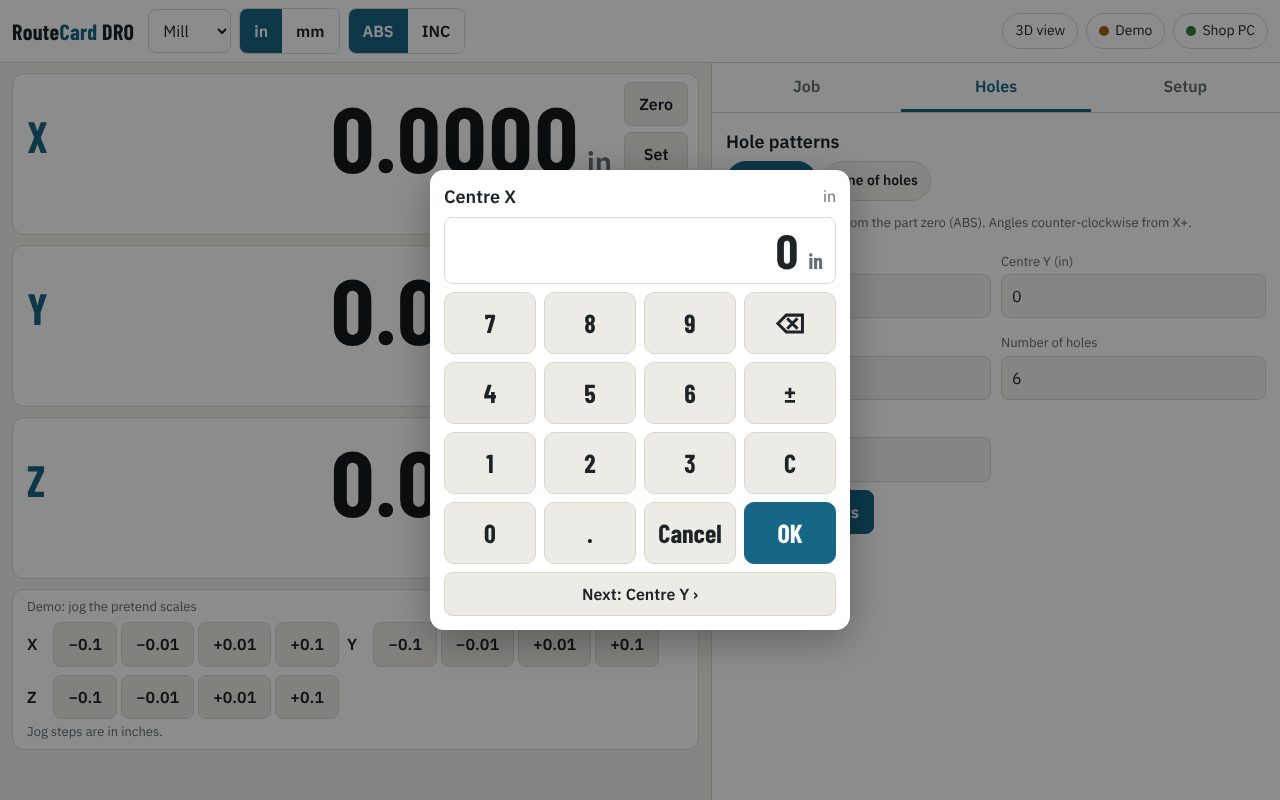
- An on-screen number pad that shows what you are typing
- Job pictures in the list, so the right job is one tap away
- Works with adapters that send TouchDRO-style data over Bluetooth
Checked G-code for every CNC setup
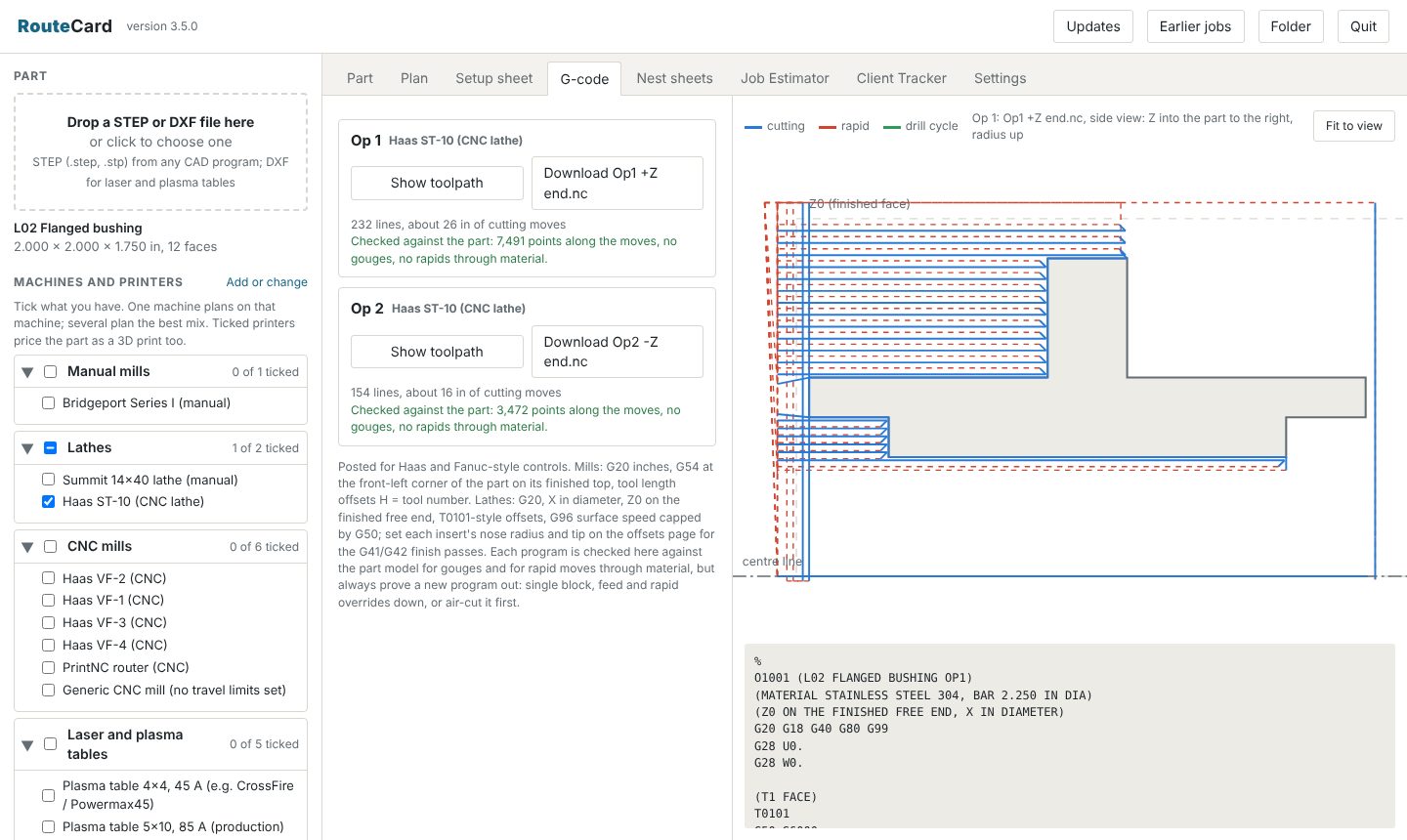
Posted for Haas and Fanuc-style controls, then every move is replayed against the part model with the real cutter shape. It reports any gouge and any rapid move through material before you download the file.
- Facing, pockets, profiles, bores, grooves, drilling cycles and 3D surfaces
- Climb milling, ramped entries, helical bores
- A 3D toolpath view of each program
- Prove every new program out: single block, overrides down, or an air cut
Turning programs, start to part-off
Tick a CNC lathe and every lathe op gets its program: face, center drill and drill, rough turn, the grooves a turning tool cannot reach, bore, finish turn and bore, and part off. Two-op parts get a program for each end.
- G20, X in diameter, Z0 on the finished face, T0101-style offsets
- Constant surface speed capped at the lathe's top speed
- Tool nose radius compensation on the finish passes
- Every move checked against the part and against the bar still to be cut
- A side view of each program against the part
Cut programs with the kerf allowed for
From a DXF, or from the face of a STEP model you click on. The cut path is checked to stay half a kerf off the part all the way round.
- Inside out (holes first) or outside in
- Outsides clockwise, holes counter-clockwise, pierces off the part
- Plasma for Mach3, Mach4, FireControl and LinuxCNC, and the ArcDroid portable plasma robot; GRBL lasers; an outline DXF for fiber lasers
- Cut time, parts per sheet, sheet weight and a cut sheet
- Warns about holes too small for the thickness
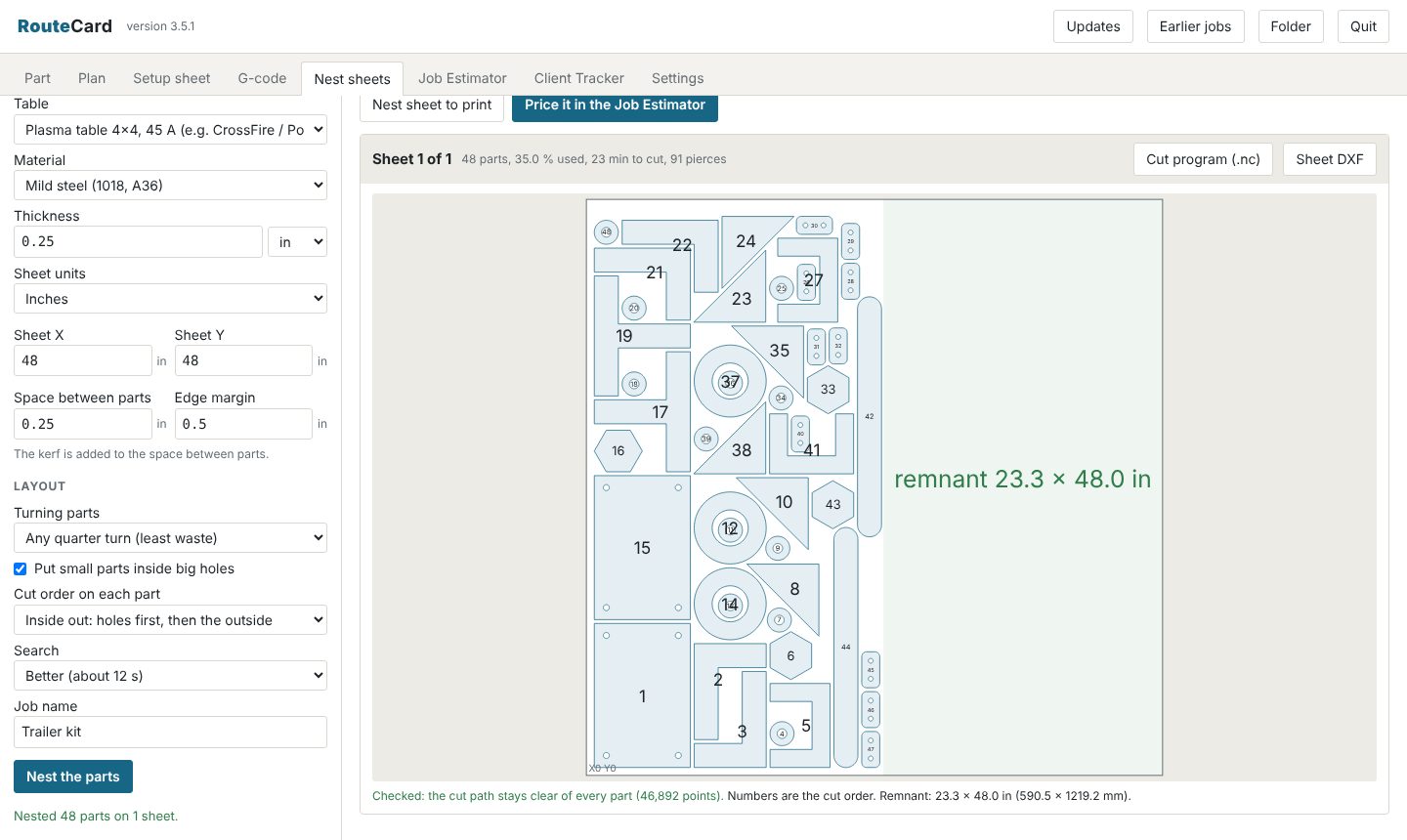
Twenty different parts, one sheet, least waste
Drop in every DXF and STEP plate for a job, give each a quantity, and set the sheet you have. RouteCard lays them out true-shape, turning them to fit, with the kerf and the gap your table needs between every part.
- Parts packed to one end, so what is left is one clean remnant
- Small parts nested inside the big holes of bigger parts, and cut before them
- Turn freely, half turns only (grain or brushed finish), or as drawn
- More sheets when one is not enough; one cut program and one DXF per sheet
- Every sheet's program replayed and checked clear of every part
- Sheets, material, cut time and pierces go straight to the Job Estimator
Print it, and slice it right here
It tries every side down, works out the support, and slices the part with walls, top and bottom skins, infill and supports. Change any setting and slice again; the quote updates with the sliced time and filament.
- Print time, filament in grams, parts per plate
- Layer-by-layer preview
- G-code for Prusa, Marlin and Klipper printers; STL for Bambu Studio and resin slicers
- Warns when a material needs an enclosure or a hardened nozzle
From plan to quote
The plan's hours and stock go straight into the Job Estimator, priced with your rates. Compare machining, cutting and printing, set the quantity, and send the quote to the Client Tracker with your clients, jobs and tasks.
- Soft jaws and fixtures: charged once, built in, or spread over a run
- Minimum charges per kind of job
- Rough breakdown and assumptions in the client message
Jobs, quotes and clients on your phone
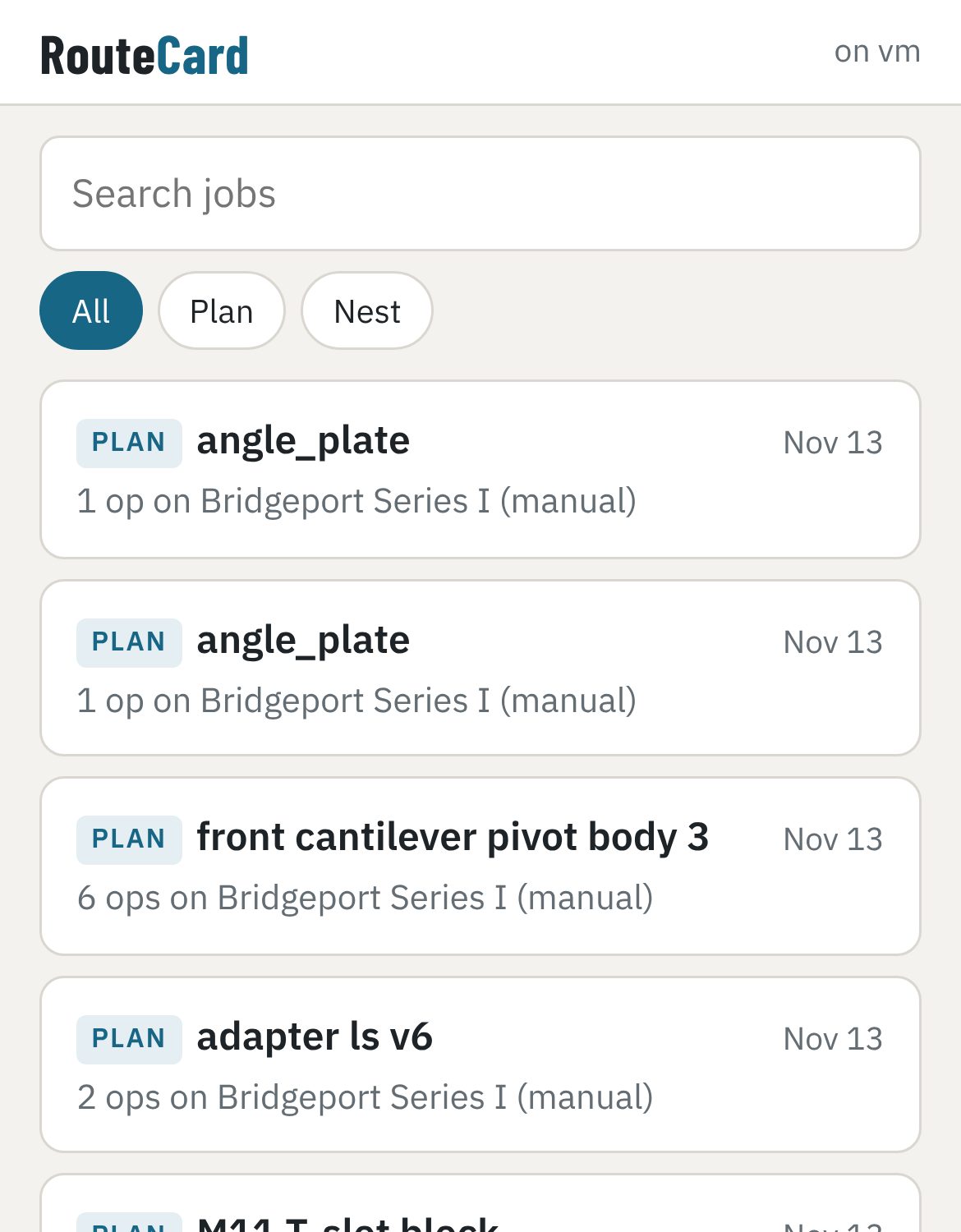
Press Phone in RouteCard and scan the code. Your phone sees the saved jobs and setup sheets, and you can write quotes and keep clients from the shop floor. Changes show on the PC within seconds, and two changes at once never overwrite each other.
- Works on the shop Wi-Fi only; nothing goes over the internet
- Add it to the home screen like an app
- Unpair every phone with one button
Test RouteCard in your shop before it goes on sale
RouteCard goes on sale in 2027. Until then a few shops get the whole program free, to use on real jobs and tell us what to fix.
Small shops with real parts to make
Manual mills and lathes, a CNC, a plasma table or a 3D printer, or any mix of them.
Everything, free for the beta
Every part of RouteCard and the DRO app, your own beta key, and first offer of a licence at the early-buyer price when it ends.
Use it, and tell us
Plan a few real jobs over about eight weeks. When something looks wrong, press Report a problem and send it in. Check every program before you cut.
support@pricetoolworks.com
Your shop PC is probably enough
| Windows | Windows 10 or newer, 64-bit |
|---|---|
| Disk | About 450 MB for the program, plus your jobs |
| Memory | 8 GB recommended for large 3D parts |
| Files it reads | STEP (.step, .stp) from any CAD program; DXF for laser and plasma |
| Internet | Not needed to use it |
| DRO | An Android tablet and a Bluetooth DRO adapter (see DRO) |
| Mac or Linux | Not yet |
Your first part, start to finish
About ten minutes, using any part you have drawn.
Export a STEP file
In Fusion: File, Export, STEP. In SolidWorks or Onshape: Save as or Export, STEP. For a laser or plasma table you can use a DXF instead.
Drop it in
Drag the file onto the Part box, or click the box and choose it. If the file has several bodies, pick the one to plan. Drag to turn the part, right-drag to pan, scroll to zoom.
Tick the machines
One machine plans on that machine; several plan the best mix. Ticked printers price a print too. For a cutting table, click the face to cut in the Part view.
Pick the material and the stock
Choose the material, the units for the sheet, and how much extra stock is on each side, then press Plan the job.
Read the plan
The Plan tab shows the route, each setup, holding, zero and steps, with any warnings. Print the setup sheet, download the G-code or cut program, or slice the print.
Take it to the machine
Print the setup sheet, or open the job on the RouteCard DRO tablet: pick the op and the step, and the readout counts down to each point.
Price it
Open the Job Estimator. Enter your shop rates once, set the quantity, pick how it is made, and copy the message for your client.
Before you cut metal
- Set your machines and tools up under Settings before relying on the plan.
- Prove out every new CNC program: single block, feed and rapid overrides down, or an air cut. The check knows the part, not your vise, clamps or fixture.
- Dry-run a new cut program with the torch or beam off.
- Watch the first layer of a new print.
- Check speeds and feeds against your tooling maker's numbers for anything unusual.
Questions
When can I buy it?
RouteCard goes on sale in 2027. A few shops are testing it now; email us to join the beta. It will be a one-time purchase, not a subscription.
Do I need Fusion or another CAM program?
No. It runs on its own and reads STEP files from any CAD program. Use whatever you draw in.
Does it need the internet?
No. It plans, checks, slices and prices on your computer. Your part files never leave it.
Does it replace my CAM software?
For many shop jobs it does the planning and the programming: setup sheets for manual machines, checked G-code for 2.5D and 3D milling, cut programs and print G-code. For complex 5-axis work or special toolpath strategies, keep your CAM system and use this for planning and quoting.
Which controls does the G-code run on?
CNC mill and lathe programs are posted for Haas and Fanuc-style controls in inches. Plasma programs suit Mach3, Mach4, FireControl and LinuxCNC, and the ArcDroid gets its own .gcode files for its USB stick; laser programs suit GRBL. 3D print G-code suits Prusa, Marlin and Klipper printers.
Can I change the speeds, feeds and machines?
Yes, all of them. Add your own machines, printers and tables, your tool list and your materials under Settings.
How do updates work? Will I lose anything?
Open Updates at the top of RouteCard. It installs the new version beside the one you have, tests it on your computer, and backs up your settings, estimates and clients before it switches over. Your jobs and files are never part of an update. If the new version will not start, RouteCard goes back to the one before by itself, and you can go back by hand too. No internet on the shop PC? Download the update file anywhere and bring it over on a USB stick.
Will I pay for updates?
No, not within the version you buy: every update to it is free for as long as you own it. When the next major version comes out, owners can upgrade at a discount, or keep using what they have. Safety fixes are always free: if a problem could damage a part, a tool or a machine, every version still in use gets its own fix.
How do I report a bug?
Press Report a problem in RouteCard. It fills in your version, Windows and the log for you; you say what happened, and attach the part if you are happy to. On a shop PC with no internet it saves a report file to email from any computer.
Can it nest a whole kit of parts on one sheet?
Yes. In Nest sheets, drop in all the DXF and STEP files, set each quantity and the sheet size, and it lays them out true-shape with the kerf and spacing allowed for, fitting small parts inside big holes. You get one checked cut program per sheet.
Which DRO adapters work with RouteCard DRO?
Adapters that read glass or magnetic scales and send the readings over Bluetooth as a serial (SPP) stream in the TouchDRO style, such as the TouchDRO glass-scale controller. Check with the adapter's maker that it uses classic Bluetooth. The app also has a demo mode, so you can try it with no scales fitted.
Is there a DRO app for iPad?
No. iPads cannot connect to the Bluetooth DRO adapters that scales use, so RouteCard DRO is for Android tablets. RouteCard on your phone works on iPhone and iPad.
How do I get the phone app?
There is nothing to download. In RouteCard on the PC press Phone, scan the code with your phone, and add the page to your home screen. It works on the shop Wi-Fi.
Do I need a CNC to use RouteCard?
No. Manual machining comes first: setup sheets for the lathe and mill, DRO coordinates and the DRO app. CNC programs are there when you have a CNC.
Is there a Mac version?
Not yet. It runs on Windows 10 and 11.
How accurate are the times and prices?
They are estimates from the model and your settings, meant for quoting. Machining times come from the planned cuts; print times come from the slicer; cutting times from cut length and your table's speeds. Check them against your own machines once and adjust the settings.
Getting help
Email is the quickest way. Include what you were doing and what went wrong. Beta shops: use Report a problem in RouteCard and email the file it saves.
support@pricetoolworks.comReplies within 2 business days.
Report a problem from RouteCard
Press Report a problem at the top of RouteCard. It sends your version, Windows and the log with what you write, so we can find the problem in the version you have. With no internet, it saves a report file to email.
Or email us
- The version, shown at the top of the window
- The log file: Documents\RouteCard\routecard.log
- The part file, if you are happy to share it
- A short screen recording (Windows key + Shift + R) if something looks wrong
If it will not start
Run RouteCard Troubleshoot.exe in the RouteCard folder: it shows what went wrong. Unzipping the whole folder again fixes most problems.
Privacy
Your files stay on your computer
The software works offline. Your part files, plans, G-code, quotes and client records are stored on your computer and are not sent to us.
Checking for updates
When you press Check for updates, or once a day if the computer is online, RouteCard asks this website for the newest version number. It sends nothing about you or your work.
Reporting a problem
When you press Report a problem, RouteCard shows you everything it will send before it sends it: what you wrote, the version, Windows, the machines you have ticked and the log, and the part file only if you choose to attach it. We use it only to fix the problem.
Licence keys
Your licence key is checked on your own computer. Nothing is sent anywhere to check it.
Support emails
When you email us, we keep the email and anything you attach only to help you.
This website
This site uses no cookies and no tracking.
Contact
support@pricetoolworks.com
Your plan, counting down at the machine
RouteCard DRO is an app for an Android tablet beside your mill or lathe. It is a full digital readout for your scales, and it also knows the job: pick the part, the op and the step, and it counts down to every hole, path point and lathe pass that RouteCard planned.
What you see on the tablet
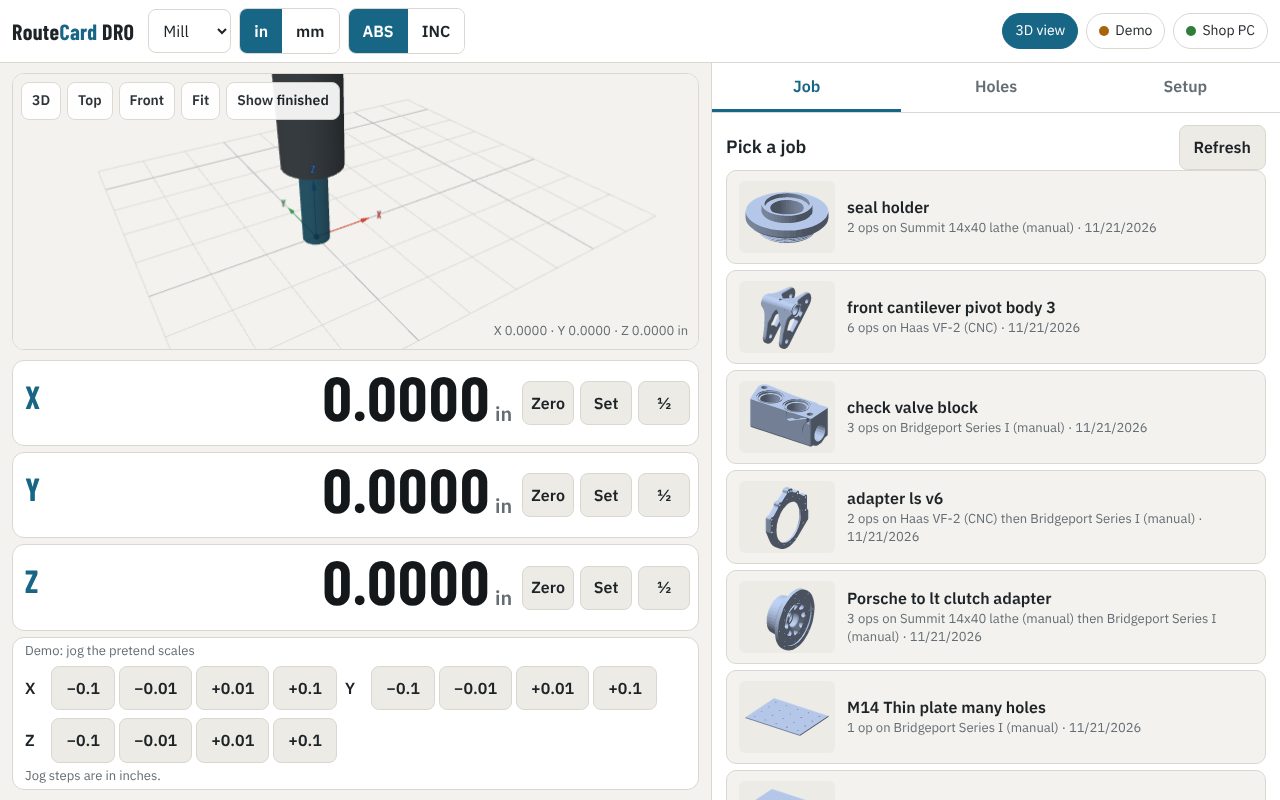
Pick the job by its picture
Every planned part shows a small picture, so the right job is one tap away.
Step by step
Each step shows the stock as it should look after the cut, with what that step removes in colour.
Distance to go
Every target counts down to zero, and the next point is drawn on the part.
Lathe in section
Lathe steps are drawn through the part with the chuck, so you see what the next pass takes off.
A number pad that stays out of the way
It shows the field you are typing in and its unit, and steps to the next field.
A full DRO too
Zero, set and half; inch or mm; absolute or incremental; diameter mode; bolt circles and lines of holes.
Four things, most of which you may already have
Scales
Glass or magnetic scales on each axis: X, Y and Z on a mill, X and Z on a lathe. Any common 5 V TTL quadrature scale.
A Bluetooth DRO adapter
One that reads the scales and sends the counts over classic Bluetooth (serial), in the TouchDRO style, such as the TouchDRO glass-scale controller. Ask the maker if it uses classic Bluetooth.
An Android tablet
Android 7 or newer, with Bluetooth. An 8 to 11 in screen reads well from the machine. iPads cannot talk to these adapters.
RouteCard on the shop PC
On the same Wi-Fi as the tablet, with Phone switched on, to send jobs to the tablet.
From the box to the first job
Fit the scales and the adapter
Follow the scale and adapter makers' instructions, and plug each scale into the adapter.
Install RouteCard DRO on the tablet
Get it from Google Play. It is free to download. It pairs with your RouteCard.
Pair the tablet with the shop PC
In RouteCard on the PC, press Phone. Scan the code with the tablet's camera and tap Connect the RouteCard DRO app. The app now sees your jobs.
Connect the adapter
Pair the adapter in the tablet's Bluetooth settings, then pick it in the app under Setup. Choose mill or lathe.
Set each scale
Enter the counts per inch from the scale's label (or let the app measure it: move a known distance and press Calibrate). Reverse an axis if it counts the wrong way.
Open a job
Pick the part, the op and the step. Zero on the part as the setup sheet says, and follow the numbers down to zero.
No scales yet? Press Demo in the app to try every screen with pretend scales.
How you get the apps
RouteCard on your phone
Nothing to download. Your own RouteCard serves it to your phone over the shop Wi-Fi.
- In RouteCard on the PC, press Phone and scan the code.
- Add it to the home screen and it opens like an app.
- Parts with their sheets and programs, jobs and tasks, quotes and clients.
- Unpair every phone from the PC with one button.
RouteCard DRO
A free download from Google Play. It pairs with your RouteCard the same way as a phone, by scanning the code.
- No account and no download link to keep: the pairing code is the key.
- Works with your scales on its own; loads jobs from your RouteCard.
- Updates come through Google Play.